What would happen if the Minecraft community decided to create a second game purely out of passion and creativity? That question is essentially answered by Hytale, one of the most ambitious projects inspired by Minecraft, while still offering several unique features that give it a distinct identity.
In this guide, we introduce Hytale in detail, explain how to download and play it, and cover all the essential information players need to know.
What Is Hytale?
Hytale is a passion-driven project that began development in 2015 by a group of Minecraft mod creators. After years of development, the team released an early-access version of the game in 2026.
The developers received financial support from Riot Games, allowing them to continue developing the project at scale. Conceptually, Hytale is very close to Minecraft, offering an interactive open world built around survival, resource gathering, and construction. However, it adds its own mechanics and systems that clearly set it apart.
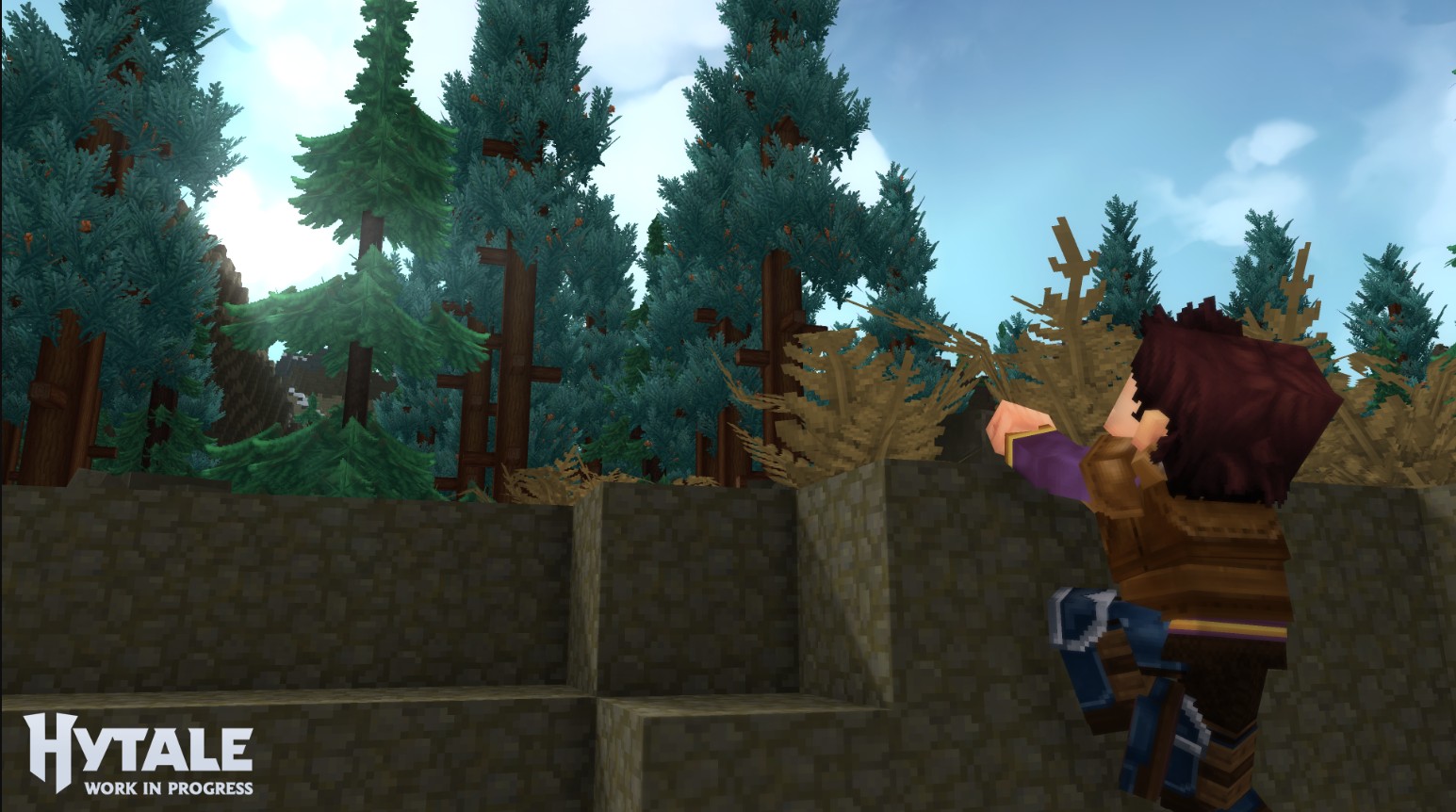
Visually, Hytale stays close to Minecraft’s iconic pixel-based style but takes a noticeable step forward in graphical fidelity and character design. The goal is to strike a balance between the familiar blocky aesthetic and a more polished, modern presentation.
One of the most significant differences is movement. Hytale introduces smoother and more fluid character animations compared to Minecraft, which makes gameplay feel distinct and more dynamic.
The game is developed by Hypixel Studios, and you can follow updates through its official website.
Supported Hytale Platforms
As of now, Hytale is available exclusively on PC. It officially supports Windows, Linux, and macOS.
There is currently no version for mobile devices or home consoles, although the developers have stated that console versions are planned for the future. For the time being, PC is the only official way to play Hytale.
Hytale System Requirements

Minimum Requirements
- Operating System
- Windows 11 or Windows 10 x64 (version 1809)
- Linux x64 (Kernel 6.15)
- macOS Tahoe (26.0)
- Processor:
- Intel Core i5-7500 or equivalent
- AMD Ryzen 3 1200 or equivalent
- Apple M1 (any variant)
- Memory: 8 GB RAM
- Graphics:
- Integrated:
- Intel UHD Graphics 620 or better
- AMD Radeon Vega 6 or better
- Apple M1 (any variant) or better
- Dedicated:
- NVIDIA GTX 900 series or better
- AMD Radeon 400 series or better
- Intel Arc A-Series or better
- Integrated:
- Storage: 10 GB SSD
Recommended Requirements
- Operating System:
- Windows 11 or Windows 10 x64 (version 1809)
- Linux x64 (Kernel 6.15)
- macOS Tahoe (26.0)
- Processor:
- Intel Core i5-10400 or equivalent
- AMD Ryzen 5 3600 or equivalent
- Apple M2 (any variant)
Memory: 16 GB RAM
- Graphics:
- Integrated:
- Intel Iris Xe Graphics or better
- AMD Radeon 660M or better
- Apple M2 (any variant) or better
- Dedicated:
- NVIDIA GTX 900 series or better
- AMD Radeon 400 series or better
- Intel Arc A-Series or better
- Integrated:
Storage: 20 GB SSD
Keep in mind that these requirements may change as development continues toward the final release.
How to Download Hytale: Complete and Easy Guide

In this section, we explain everything related to downloading and running Hytale correctly. While the process itself is not overly complex, the fact that the game is not distributed through traditional stores can be confusing at first.
Before starting, here are a few important points:
- Hytale is not free at this time
- The game is not available on official digital stores such as Steam
- Any website offering a free download is fake, incomplete, or illegal and will not provide full features
Downloading Hytale on PC
PC is currently the only official platform for Hytale. To download the game correctly, follow these steps:
- Visit the official Hytale website
- Navigate to the download page
- Download the official game launcher
- Choose the version you want
- Launch the game through the launcher
The official launcher is the only supported way to play the game. Since Hytale is still in early access, technical issues are possible and expected.
Downloading Hytale on Mobile Devices
There is no official mobile version of Hytale. The only possible workaround is using emulation, which is not guaranteed to work properly.
Using an emulator:
- Install a Windows emulator such as Winlator
- Open the emulator
- Download and launch the game through the emulator
This method depends heavily on your phone’s hardware and is not officially supported. Any claims about a native mobile app should be treated as unsafe and potentially harmful.
The safest option is to wait for an official mobile release, which may happen if the game achieves enough success.
Hytale on Consoles
Hytale is not available on PlayStation or Xbox. Console operating systems are closed environments, which prevents unofficial installations.
At the moment, the only viable option is to wait for an official console release.
How to Create a Hytale Server

Creating servers in Hytale is possible either for free or through paid hosting services if you prefer a third-party provider. You can also host a server yourself, but this means your personal computer will act as the server host. Turning off your PC will immediately shut down the server. This method also requires a stable, high-quality internet connection and a relatively powerful computer, especially when it comes to RAM.
Despite these requirements, we will explain all currently available ways to create a Hytale server.
Creating a Free Local Hytale Server: Hytale Server Hosting Guide
The first method relies on hosting the server locally on your own device. This option is completely free but depends entirely on your personal hardware. To do this, follow the steps below:
- First, you must have Java 25 installed. The developers recommend using Adoptium.
- Next, download the core server files required to create a Hytale server. (you can find the files here)
- After downloading, extract the compressed folder and move it to your desktop.
- Open the folder and run the executable file that matches your operating system. Each file is clearly labeled based on the supported system, such as Windows or Linux.
- A command window will appear and prompt you to complete the authentication process. The steps are straightforward:
- Copy the link displayed in the command window. You can copy it using standard keyboard shortcuts after selecting the link with your mouse.
- Open the link in your web browser. You will be asked to sign in using the same account you use to play Hytale, then approve the authentication request.
- After a short wait, a confirmation message will appear. Return to the command window.
- The required server files will now begin downloading. Do not close the command window during this process.
- Once the download is complete, the command window will close automatically.
- Return to the original folder. You will find a new compressed file. Extract it, preferably inside the same main directory.
- A new folder containing the server files will appear. It is recommended to rename this folder to something clear and easy to recognize, such as “Server Directory”.
- Move this newly renamed folder to your desktop. This will be the main folder used for the server.
- Open the folder and create a new text document inside it.
- Paste the following command into the text document:
- java -Xms128M -Xmx6096M -jar Server/HytaleServer.jar –assets Assets.zip PAUSE
- Save the file with the name “run.bat”. The file name must be exactly this for the method to work. Make sure it is saved inside the server folder.
- Now open the run.bat file. A command window will appear and automatically begin preparing your server and downloading additional required files. This process may take some time. You may see warning messages in yellow, which are normal. Wait until you see a green message confirming that the server is running.
- In the same command window, type the following command on the last line to authenticate the server:
- auth login device
- Press Enter and complete the authentication steps, which are identical to the earlier authentication process.
- Once completed, the command window will confirm that the server is running successfully. Keep this window open at all times, as closing it will shut down the server.
Keep in mind that server authentication must be completed every time you start the server by running the run.bat file.
How to Connect to Your Local Server
After successfully creating the server, follow these steps to connect to it.
- Make sure the command window running the run.bat file remains open.
- Launch the game normally and open the Servers section.
- Choose the option to add a server and enter the following information.
- Connection Address: localhost
- Server name: Local Connection
- The server will now appear in your server list. Simply select it to join and start playing.
Naturally, the next step is inviting your friends, which we will explain below.
How to Invite Friends to Your Hytale Server
After creating and accessing your server, you can invite others by following these steps.
- Open the main command prompt on your operating system. On Windows, search for “cmd” using the system search bar.
- In the command prompt, type ipconfig and press Enter.
- Network information will appear. You need to copy and save two specific values. It is recommended to store them in a separate text document for easy access later.
- Locate the IPv4 address and the Default Gateway.
- You may see multiple network sections containing similar fields. Most users should select the Ethernet section. If friends are unable to connect later, return to this step and try a different network section.
- Copy the Default Gateway address and paste it into a web browser.
- You will be asked to enter your router’s username and password. If you have not changed them, they are often set to “admin” by default.
- In your router settings, look for the Port Forwarding option. Its name and location may vary depending on your router model.
- Add a new Port Forwarding rule with the following settings.
- Choose any name you prefer, such as “Hytale Server”.
- Set the protocol to UDP.
- Set the port range to 5520.
- Enter your local IPv4 address in the appropriate field, or select your device name if available.
- Save the settings to apply Port Forwarding.
- Next, you need your public IP address. You can find it easily through any public IP lookup website. (like this one)
- Open the game again and add a new server using the following information:
-
- Connection Address: paste here your public IP address
- Server Name: Public IP (or any name you prefer)
-
- You can now join this public server. To invite friends, generate a share code from within the server. You can do that by following these steps:
- After joining the server, press Esc.
- Open the Online Play section.
- Enable the option that allows other players to join.
- Set a password if you wish.
- Save the settings to generate the share code. You can copy and share it directly.
As a final note, the share code contains your IP address. This is sensitive information, so avoid sharing it publicly to protect your system.
Creating a Hytale Server Using External Services
If you want to avoid the complexity of local hosting, you can use external hosting services such as Aternos. The process is very simple.
- Open the Aternos website.
- Create or sign in to your account.
- Select the option to create a server.
- Choose Hytale from the list of supported games.
- Server details and address will be generated automatically. If you do not want to modify anything, simply confirm the creation.
- Start the server to make it online and accessible to players.
- Copy the server address, launch the game, and go to the Servers section.
- Choose Direct Connect and paste the server address to join immediately.
- You can invite friends by sharing the same server address. If they encounter issues, you can also enable a private share code using the in-game method explained earlier.
Complete List of Hytale Commands

Hytale commands allow you to modify the game world, manage players, control servers, and perform many other actions directly while playing. Below is the complete list of available Hytale commands and their effects.
General Hytale Commands
- /op self
Grants yourself administrator privileges. - /op [player]
Grants administrator privileges to another player. Running the command again removes those privileges. - /auth status
- /auth login
- /auth logout
Manage server authentication.
Log in to the server.
Log out of the server. - /backup
Creates a backup of the game world. - /gamemode [gamemode] [player]
Changes the game mode for the selected player. Available modes include Adventure, Exploration, and Creative. - /give [item] [player]
Gives a specific item to a player. Replace item and player with the appropriate names. - /heal
Fully restores health and stamina. - /help
Displays a list of all available commands. - /hub
Returns the player to the main Hytale hub. - /hudtest
Hides the user interface. Use /hudtest reset to restore it. - /inventory clear
Clears your inventory. - /inventory see [player]
Displays another player’s inventory. - /kill [player]
Instantly kills the specified player. - /player respawn
Respawns the player character. - /spawn set
Sets a spawn point in the world. - /spawn [player]
Teleports the player to the designated spawn point. - /stop
Stops the server. - /tp [player] [x] 26 [z]
Teleports a player to specific coordinates. - /unstuck
Moves your character to the highest available position at your current location. Useful if you get stuck. - /whereami
Displays your current location in the world. - /whoami [player]
Displays information about the specified player.
World and Building Commands
- /block
Edits the state of block objects in the game. - /buildertoolslegend
Enables or disables the building user interface. - /camshake
Adjusts camera shake intensity. - /checkpoint add
Adds a checkpoint. - /checkpoint remove
Removes a checkpoint. - /chunk
Controls and manages world map chunks. - /clearblocks [position one] [position two]
Removes all blocks and objects within a defined area. - /editprefab
Loads, saves, and edits prefabricated structures. - /fillblocks [pattern]
Fills empty spaces with selected blocks or objects within a specific area. - /mount
Mounts a rideable entity or object. - /dismount
Dismounts from the current entity or object. - /prefab save
Saves a prefab. - /prefab load
Loads a prefab. - /prefab delete
Deletes a prefab. - /prefab list
Displays a list of all available prefabs. - /time
Displays the current world time. - /weather set [weather type]
Sets the weather to the specified type. - /weather reset
Resets the weather to its default state. - /worldmap discover [zone]
Discovers a specific zone on the world map. - /worldmap undiscover [zone]
Removes a discovered zone from the world map. - /world reload
Reloads the world map. - /world clearmarkers
Removes all markers from the map.
Multiplayer Commands
- /ban [player]
Bans a player from the world or server. - /emote [emote]
Plays an emote animation for the character. - /kick [player]
Kicks a player from the world or server. - /max players [amount]
Sets the maximum number of players allowed on the world or server. - /unban [player]
Removes a ban from a player. - /who
Displays a list of all currently connected players. - /whitelist add [player]
Adds a player to the whitelist. - /whitelist remove [player]
Removes a player from the whitelist. - /whitelist enable
Enables the whitelist. - /whitelist disable
Disables the whitelist. - /whitelist list
Displays all players currently on the whitelist.
Other Commands
- /cursethis
Applies a curse effect to the item you are currently holding. - /damage [player] [amount]
Deals a specified amount of damage to a player. - /fillsignature
Fully charges special ability energy. - /memories clear
Clears all progression data related to the memory system. - /memories unlockall
Unlocks all progression elements within the memory system. - /notify
Sends a notification to all players across all worlds.
Frequently Asked Questions
When was Hytale released?
The game launched as an early-access on January 13, 2026.
Is Hytale free?
No, the game is not free and must be purchased.
Is Hytale available on consoles?
No console versions have been released so far.
Can Hytale be downloaded for Android?
No, the game is not available on mobile devices.
Is MediaFire download possible?
No, there is no official mobile version.
Can Hytale be downloaded for free on PC?
No. Downloading the game illegally exposes your system to security risks and removes multiplayer functionality.
This concludes our complete Hytale guide. We hope it provides everything you need to understand, download, and enjoy the game.
Don’t forget to check: